How to Add Google Reviews to Wix: Editor, Preview and Live Site
How to add Google reviews to Wix with Embed HTML, size the box so reviews aren't cut off, put floating badges in Custom Code, and check the live site on a phone.
On this page
- Two places to paste code in Wix
- Check which editor you're in
- How to add Google reviews to Wix, step by step
- Why the widget looks cut off inside Wix
- The editor isn't the live site
- Your Wix mobile site needs its own pass
- Floating badges go in Custom Code
- Troubleshooting Google reviews on Wix
- Is a hosted widget the right fit for Wix?
- Next step
Key takeaways
- Wix route: Add Elements > Embed Code > Embed HTML, Enter Code, paste, Apply, size the box, publish.
- Embed HTML is an iframe with a fixed height, so the box you draw decides how much of the widget shows.
- Floating layouts go in Settings > Custom Code (All pages, Body - end) and need a published site with a connected domain.
- Wix keeps a separate mobile layout; resize the box there, or add a mobile-only embed with the same code.
- Changing the site's domain deletes Wix custom code snippets, so re-add them afterwards.
Most Wix review widgets I'm asked to look at aren't broken. The box is just too short. Wix puts embedded code inside a frame with a fixed height, so the box you draw in the editor is all the room your reviews get, and anything taller gets clipped.
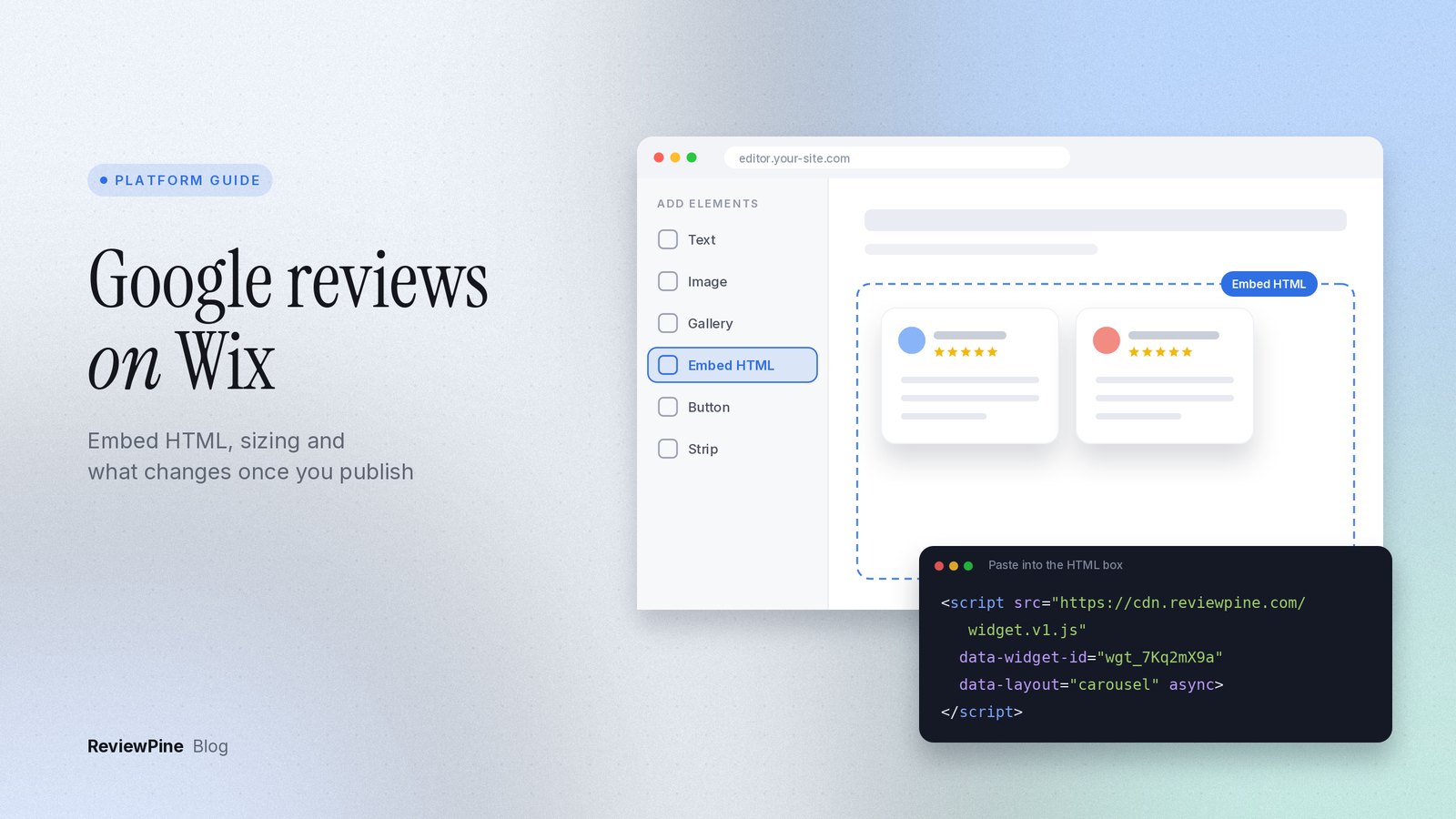
So when you add Google reviews to Wix, pasting the code is the easy bit. Copy your widget's embed code, open the Wix Editor, click Add Elements, then Embed Code, then Embed HTML, click Enter Code, paste, apply and publish. That works on any Wix plan. Then give the height two minutes of attention.
Floating layouts (a corner badge, review toasts, a side tab) take a different route, Settings > Custom Code, which needs a published site with a connected domain.
Two places to paste code in Wix#
They look similar in the menus. They behave very differently.
| Embed HTML element | Settings > Custom Code | |
|---|---|---|
| Where it lives | A box you place on one page | Site-wide or chosen pages, no box |
| Plan needed | Any plan | Published site with a connected domain (a paid Wix plan) |
| How it renders | Inside a sandboxed iframe | Directly in the page |
| Good for | Slider, Grid, List, Badge, Spotlight and other in-page layouts | Floating badge, Trust badge, Review toasts, Side tab, Review bubble, Corner card, Phone review bar |
| Sizing | You set the height by dragging | The widget positions itself |
On a free Wix site without a domain, stick to in-page layouts. A Badge in an Embed HTML box near your header or contact form does most of what a floating badge would.
Check which editor you're in#
Wix has three editors now, and the menu labels differ:
- Wix Editor (the classic one): Add Elements > Embed Code > Embed HTML.
- Wix Studio: Add Elements > Embed & Social > Embed Code (Wix Studio guide).
- Wix Harmony: + Add > Elements > More Options > Embed > Embed code (Wix Harmony guide).
All three put your code in an iframe, so the sizing advice further down applies to every one of them.
How to add Google reviews to Wix, step by step#
- Create your widget, choose an in-page layout and copy the code. Our Wix install guide shows where to find it.
- In the Wix Editor, open the page and click Add Elements on the left.
- Click Embed Code, then Embed HTML. Wix drops an empty box on the page.
- Click the box, click Enter Code, and paste the one-line script under Add your code here.
- Click Apply. If Wix offers a field for the embed's alt text, write something like "Customer reviews from Google" for screen reader users (Wix Editor guide).
- Stretch the box to the full width of its section and make it tall. You'll trim it in a minute.
- Click Preview, look at the reviews, then Publish.
Wix Harmony is slightly different. You paste the code in the element's Settings panel, and it also asks you to pick a category under Cookies and similar technologies set by your code. ReviewPine's widget sets no cookies and uses no browser storage, so choose the category that reflects that. If someone else owns your privacy notice, check with them.
Why the widget looks cut off inside Wix#
Wix is upfront about this. Its HTML element is an iframe, so embedded code "won't be responsive, even if it is originally." The widget adapts to whatever width it's given. What it can't do is make the Wix box taller. If the box is shorter than the layout, the bottom is clipped or a scrollbar appears inside the box.
My routine for getting the height right: start with a box that's obviously too tall, preview it, then shrink it until there's a small gap under the last review and no inner scrollbar. Then do the same on the mobile layout, because the cards stack differently there.
Your choice of layout makes a big difference. A Grid with Load more grows when a visitor clicks the button, and the frame won't grow with it. A Slider, Card stack, Spotlight or a Grid with a fixed number of reviews is much easier to fit. If you really want a long list, set Limit height in the ReviewPine customizer so the reviews scroll inside the widget at a height you pick, and size the Wix box to match.
Tip: Make layout and design changes in ReviewPine, not in Wix. The code stays the same and every page updates. Just come back and resize the Wix box if the new layout is taller.
The editor isn't the live site#
I'd treat the editor as a rough sketch. What visitors get is the published page, and a few things only show up there:
- The editor and Preview show your box at the size you drew it. Your visitors' screens are all sorts of sizes.
- Code in Settings > Custom Code only runs on the published site, because it's attached to your connected domain. You won't see a floating badge in the editor at all.
- Wix says it changed its frontend security for custom code in December 2025, and that some snippets that used to work may be blocked until their provider updates them (Wix custom code guide). If something works in Preview but not on the live site, open the live page in a private window before you try anything else.
Check the real URL on a laptop and on your own phone. The editor's device toggle isn't the same thing.
Your Wix mobile site needs its own pass#
Wix builds a separate mobile layout from your desktop page. An Embed HTML box you add on desktop shows up on mobile too, but its size and position often need fixing.
In the mobile editor, select the box and drag it taller or shorter. You can't edit the code itself there (Wix mobile HTML guide). If one size can't suit both, hide the desktop box on mobile and add a mobile-only Embed HTML from the mobile editor's Add panel; anything added there only shows on mobile. Paste the same code. It's the same widget.
On a phone, I'd usually pick a narrow slider or a badge over a tall grid.
Floating badges go in Custom Code#
A Floating badge, Review toasts or Side tab has to sit at the edge of the browser window. From inside an Embed HTML frame it can only reach the edge of the frame, so it ends up stuck in a box on the page. Put it in site-wide code instead:
- Make sure the site is published and has a connected domain.
- In your site's dashboard, go to Settings, then Custom Code under Development & integrations.
- Click + Add Custom Code and paste the floating widget's code.
- Name it something you'll recognize later, like "Review badge".
- Under Add Code to Pages choose All pages, and under Place Code in choose Body - end.
- Click Apply and check the live site.
With All pages selected, Wix also asks whether to load the code once per visit or on each page. I'd pick each page, then click through two or three pages on the live site to confirm the badge stays put.
Important: Wix ties custom code to a domain. If you assign a different domain to the site, Wix deletes the snippets, so add the code again after any domain change.
Troubleshooting Google reviews on Wix#
| Symptom | Likely cause | Fix |
|---|---|---|
| Reviews cut off at the bottom | Embed box shorter than the layout | Make the box taller, or set Limit height in the customizer |
| Scrollbar inside the box | Same as above | Resize until the scrollbar goes |
| Fine on desktop, cut off on phone | Mobile layout has its own box size | Resize in the mobile editor or add a mobile-only embed |
| Floating badge stuck inside a box | Placed in Embed HTML | Move it to Settings > Custom Code |
| No Custom Code option works | Site unpublished or no connected domain | Publish and connect a domain, or use an in-page Badge |
| Badge vanished after a domain change | Wix deleted snippets tied to the old domain | Add the custom code again |
| Shows a small notice instead of reviews | Widget deleted or plan ended | See what the notice means |
Wix support doesn't cover third-party code, so for widget problems go to the widget provider (that's us, for ReviewPine).
Is a hosted widget the right fit for Wix?#
For most Wix sites, I think so. The reviews stay current without anyone editing the page, and the same code still works if you ever move off Wix. It's a weaker fit if you want a long, ever-growing wall of reviews, because the fixed frame works against you there. And embedded reviews won't put star ratings next to your site in search results; review schema and star ratings explains why.
For other platforms and the general method, see how to add Google reviews to your website. If you're still deciding which page the reviews belong on, where to put reviews on your website covers placement.
Next step#
Try a few layouts and heights in the customizer playground before you open Wix, so you have a rough idea how tall the box needs to be. Then create your widget. The 7-day trial includes every feature and needs no card.
Platform details checked on 23 October 2026.
Frequently asked questions
Can I add Google reviews to a free Wix site?
Why are my Google reviews cut off on Wix?
Does this work in Wix Studio?
Is there a ReviewPine app in the Wix App Market?
Will the reviews update by themselves?
Turn your Google reviews into your best salesperson
Show real, always-fresh Google reviews on any page of your website, with a "Review us on Google" button that brings in new ones. Set up in about two minutes.
- Works on WordPress, Shopify, Wix and any site
- Updates by itself
- No cookies, loads after your page
Anjanee Shukla
Founder, Ainygo Technologies
Anjanee Shukla is the founder of Ainygo Technologies and has been working in the technology industry for over 15 years. He has helped businesses worldwide by developing more than 1,000 websites, web applications, and digital solutions. His expertise spans WordPress, web development, website maintenance, hosting, automation, and business technology. Through this blog, he shares practical advice, technical knowledge, and real-world solutions gained from years of hands-on experience.