How to Add Google Reviews to Your Website (4 Methods Compared)
Copying reviews by hand, building on Google's API, or using a widget: what each method really involves, what it costs, and the step-by-step for WordPress, Shopify, Wix and more.

On this page
- Why show Google reviews on your website at all?
- Method 1: Copy and paste reviews by hand
- Method 2: Build it yourself with the Google Places API
- Method 3: A platform plugin or app
- Method 4: A review widget (the method most businesses use)
- How to add Google reviews to WordPress
- How to add Google reviews to Shopify
- How to add Google reviews to Wix, Squarespace and Webflow
- Where should the reviews go?
- Will a reviews widget slow down my website?
- Can I get star ratings in Google search results from my website's reviews?
- The quickest way to get started
Key takeaways
- There are four ways to add Google reviews to a website: manual copying, the Google Places API, a platform plugin, or a review widget.
- A widget suits most small businesses: about two minutes to set up, works on any website and stays up to date automatically.
- Google's Places API returns only a handful of reviews per place and needs a developer to build and maintain.
- Place reviews close to decisions: under the homepage headline, beside contact forms and on pricing pages.
- Show your overall Google rating and review count next to the reviews for honest context.
- Review stars in search results aren't shown for a business's own reviews on its own website (Google, 2019).
To add Google reviews to your website, you have four options: copy reviews by hand, build your own integration with Google's Places API, install a platform plugin, or embed a review widget that pulls your reviews automatically. For most small businesses, a widget is the right choice: it takes about two minutes, stays up to date by itself, and works on any website builder without code beyond one pasted line.
That's the summary. Below is the honest version of each method, including the catches nobody mentions on the sales page, followed by step-by-step instructions for the most popular platforms.
Why show Google reviews on your website at all?#
Because your website is where people decide, and it's usually the least trusted page they see. BrightLocal's 2026 survey found 54% of consumers visit a business's website after reading positive reviews. They arrive convinced enough to look closer, and then they find your own claims about yourself. Real reviews from Google, with names, dates and star ratings, carry the trust from the search results onto the page where people press "Book" or "Call".
There's commercial evidence too. Northwestern's Spiegel Research Center found that showing reviews lifted purchase likelihood sharply, with the biggest effect for higher-priced items. For more on this, see how reviews increase your website's conversion rate.
Method 1: Copy and paste reviews by hand#
The simplest method is to copy your favourite reviews from Google and paste them into a testimonials section on your site.
Why people do it: it's free and you control exactly what appears.
Why it rarely lasts:
- It goes stale. The reviews you pasted in January are still there in December, while your Google profile has moved on. Visitors notice dates, and old reviews read like a business that peaked.
- It loses credibility. A quote with no link, no date and no star rating looks like something you wrote yourself, which is exactly the suspicion reviews are supposed to remove.
- It's work that never ends. Someone has to remember to update it, and nobody does.
Manual copying is fine as a stopgap for a site with a single landing page. It's a poor long-term solution.
Method 2: Build it yourself with the Google Places API#
Developers can request your business's reviews from Google's Places API and display them with custom code.
Why people do it: full control over design, and no third-party tool.
The catches:
- The API returns only a handful of reviews per place (up to five in the standard Place Details response), chosen by Google, not by you.
- It needs a Google Cloud project, an API key, billing details and someone to maintain the code when Google changes things.
- You must follow Google's attribution and display requirements, and cache data only as the terms allow.
- Developer time costs far more than a widget subscription for most small businesses.
It's a reasonable route for a large company with a development team. For a local business, it's usually the most expensive way to get the smallest result.
Method 3: A platform plugin or app#
WordPress, Shopify and Wix all have marketplaces with review plugins.
Why people do it: installation feels native to the platform.
The catches: quality varies enormously. Many plugins load heavy scripts on every page, slow your site, rely on the same limited API above, or only work on that one platform. If you ever move from WordPress to something else, you start again. Check how recently a plugin was updated, how many reviews it can show and what it does to your page speed before you install it.
Method 4: A review widget (the method most businesses use)#
A review widget is a small piece of code, usually one line, that you paste into your site once. It fetches your Google reviews, displays them in a designed layout, and keeps them up to date automatically.
Why it's usually the best choice:
- It works on any website: WordPress, Shopify, Wix, Squarespace, Webflow or hand-built HTML.
- It stays current without anyone remembering to update it.
- It shows real Google signals: names, star ratings, dates, and your overall rating.
- Design changes happen in the widget's dashboard and appear on your site instantly, without touching the code again.
What to check before choosing one: how many reviews it can show, how often it refreshes, whether it slows your pages, whether it sets cookies (which affects your cookie banner and privacy notice), and whether it includes a way to collect new reviews.
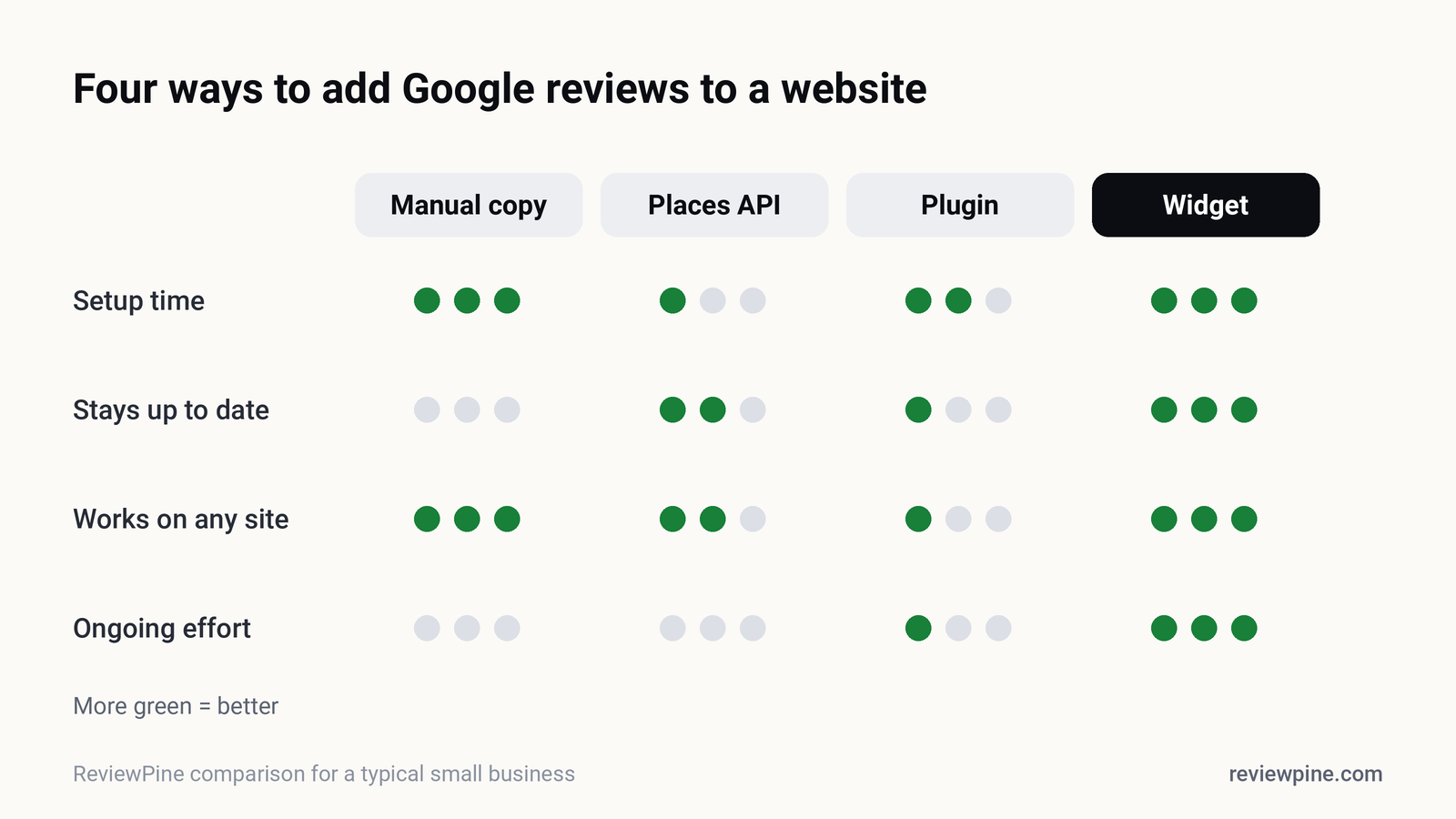
| Manual copy | Places API | Plugin | Widget | |
|---|---|---|---|---|
| Setup time | Minutes | Days | 15 to 60 min | About 2 min |
| Stays up to date | No | Yes, if maintained | Varies | Yes |
| Works on any website | Yes | Yes, with code | One platform | Yes |
| Shows more than five reviews | Yes | No | Varies | Yes |
| Ongoing effort | High | High | Medium | Low |
| Typical cost | Free | Developer time | Free to paid | Low monthly or yearly fee |
How to add Google reviews to WordPress#
- Create your widget and copy its embed code.
- In WordPress, edit the page where the reviews should appear.
- Add a Custom HTML block where you want the reviews.
- Paste the code and click Update.
Using Elementor, Divi or another page builder? Drag in their HTML or Code element instead and paste the same code. Full details, including adding reviews to every page, are in our WordPress guide.
How to add Google reviews to Shopify#
- Copy your widget's embed code.
- In Shopify admin, go to Online Store → Themes → Customize.
- Add a Custom Liquid section where you want the reviews, for example under the hero on your homepage.
- Paste the code and click Save.
See Google reviews on Shopify for product-page placement and theme tips.
How to add Google reviews to Wix, Squarespace and Webflow#
- Wix: Add → Embed Code → Embed HTML, choose Code, paste and Update, then publish.
- Squarespace: add a Code block to the section, paste the code, and save.
- Webflow: drag in an Embed element, paste the code, save and publish.
For any other website, paste the code into the page's HTML where the reviews should appear, inside the body. If someone else manages your site, send them the line of code; it takes them a minute.
Where should the reviews go?#
Close to the decision. The highest-converting spots are usually directly under your homepage headline, beside your contact or booking form, and on pricing or service pages where people hesitate. Avoid burying them in a footer or on a separate "Testimonials" page few people visit. We go into detail in where to put reviews on your website.
Tip: Show your overall Google rating and total number of reviews alongside the individual reviews. It gives visitors context and makes clear you're showing a selection, not hiding the rest.
Will a reviews widget slow down my website?#
A well-built one shouldn't. Look for a widget that loads asynchronously (so it never blocks your page), only fetches its data when the visitor scrolls near it, and keeps its own styles separate from your site's. ReviewPine's widget script is small, loads lazily, and sets no cookies, so it doesn't add to your consent banner. It's worth checking your page with Google's PageSpeed Insights before and after adding any third-party tool.
Can I get star ratings in Google search results from my website's reviews?#
Usually not, and it's better to know this before you're promised otherwise. Since 2019, Google hasn't shown review stars in search results for local businesses and organisations when the reviews are about the business itself and shown on its own site. We explain the rule and what still works in review schema and star ratings.
The quickest way to get started#
If you want your Google reviews on your site today, ReviewPine does it in about two minutes: paste your Google Maps link, pick a layout (slider, grid, list, badge or sidebar), match your brand colours and copy one line of code. Your reviews refresh automatically, and the built-in "Write a review" button sends happy visitors straight to your Google review form. You can browse every widget design or try the customiser before you sign up.
Frequently asked questions
How do I add Google reviews to my website for free?
Does Google have an official reviews widget?
How many Google reviews can I show on my website?
Will adding Google reviews help my SEO?
Do I need a developer to add Google reviews to my website?
Turn your Google reviews into your best salesperson
Show real, always-fresh Google reviews on any page of your website, with a "Write a review" button that brings in new ones. Set up in about two minutes.
- Works on WordPress, Shopify, Wix and any site
- Updates itself every day
- No cookies, no slowdown
Anjanee Shukla
Founder, Ainygo Technologies
Anjanee Shukla is the founder of Ainygo Technologies and has been working in the technology industry for over 15 years. He has helped businesses worldwide by developing more than 1,000 websites, web applications, and digital solutions. His expertise spans WordPress, web development, website maintenance, hosting, automation, and business technology. Through this blog, he shares practical advice, technical knowledge, and real-world solutions gained from years of hands-on experience.