How to Add Google Reviews to Shopify (Homepage, Product Pages and Footer)
Shopify stores sell to strangers, and strangers need proof. How to add your Google reviews to any Shopify theme with a Custom Liquid section, where they convert best, and how they work alongside product reviews.

On this page
- Why do Shopify stores need Google reviews?
- How to add Google reviews to your Shopify homepage
- How to add Google reviews to product pages
- How to show Google reviews in the footer or on every page
- How to add reviews to the cart page
- Which layout suits each Shopify placement?
- Will a reviews widget slow down my Shopify store?
- Do I need a Shopify app?
- Can Google reviews give my product pages stars in search?
- Tips for different types of Shopify stores
- Get your Shopify store reviewed and seen
Key takeaways
- In Shopify, add a Custom Liquid section or block in the theme editor, paste the embed code and save.
- It works with any Online Store 2.0 theme, including Dawn, and needs no Shopify app.
- Product reviews answer "is this item good?"; Google reviews answer "is this shop trustworthy?"
- Reviews lift purchase likelihood more for higher-priced items: 380% versus 190% (Spiegel Research Center).
- Use a carousel under the homepage hero, a badge near product prices and a badge in the footer.
To add Google reviews to Shopify, copy your review widget's embed code, then in your Shopify admin go to Online Store, Themes, Customize, add a Custom Liquid section (or block) where you want the reviews, paste the code and click Save. This works with any Online Store 2.0 theme, including Dawn, and takes about two minutes. You can repeat it on product page templates and in the footer.
Below are detailed steps for each placement, plus how Google reviews about your store complement the product reviews you may already show.
Why do Shopify stores need Google reviews?#
Online shoppers can't touch the product or meet the seller. They need reasons to trust both. Product reviews answer "is this item good?" Google reviews about your store answer different questions: "is this shop real, does it ship on time, will they sort it out if something's wrong?"
That second set of questions often decides whether a first-time visitor buys at all. Northwestern's Spiegel Research Center found reviews raise purchase likelihood more for higher-priced items (380%) than for cheaper ones (190%), which is exactly the hesitation a new store faces with a bigger order.
| Review type | Answers | Best location |
|---|---|---|
| Product reviews | Is this product good, does it fit, does it last? | Product pages |
| Google reviews about your store | Is this shop trustworthy, fast, helpful? | Homepage, cart, footer, product pages |
If you also have a physical shop or showroom, your Google reviews are likely your largest body of independent feedback. Showing them online connects your offline reputation to your online store.
How to add Google reviews to your Shopify homepage#
- In your review widget's dashboard, click Copy code.
- In Shopify admin, go to Online Store → Themes, and click Customize on your live theme.
- Make sure you're on the Home page template (top dropdown).
- Click Add section where you want the reviews, for example under the hero banner.
- Choose Custom Liquid.
- Paste the code into the Liquid code box.
- Click Save.
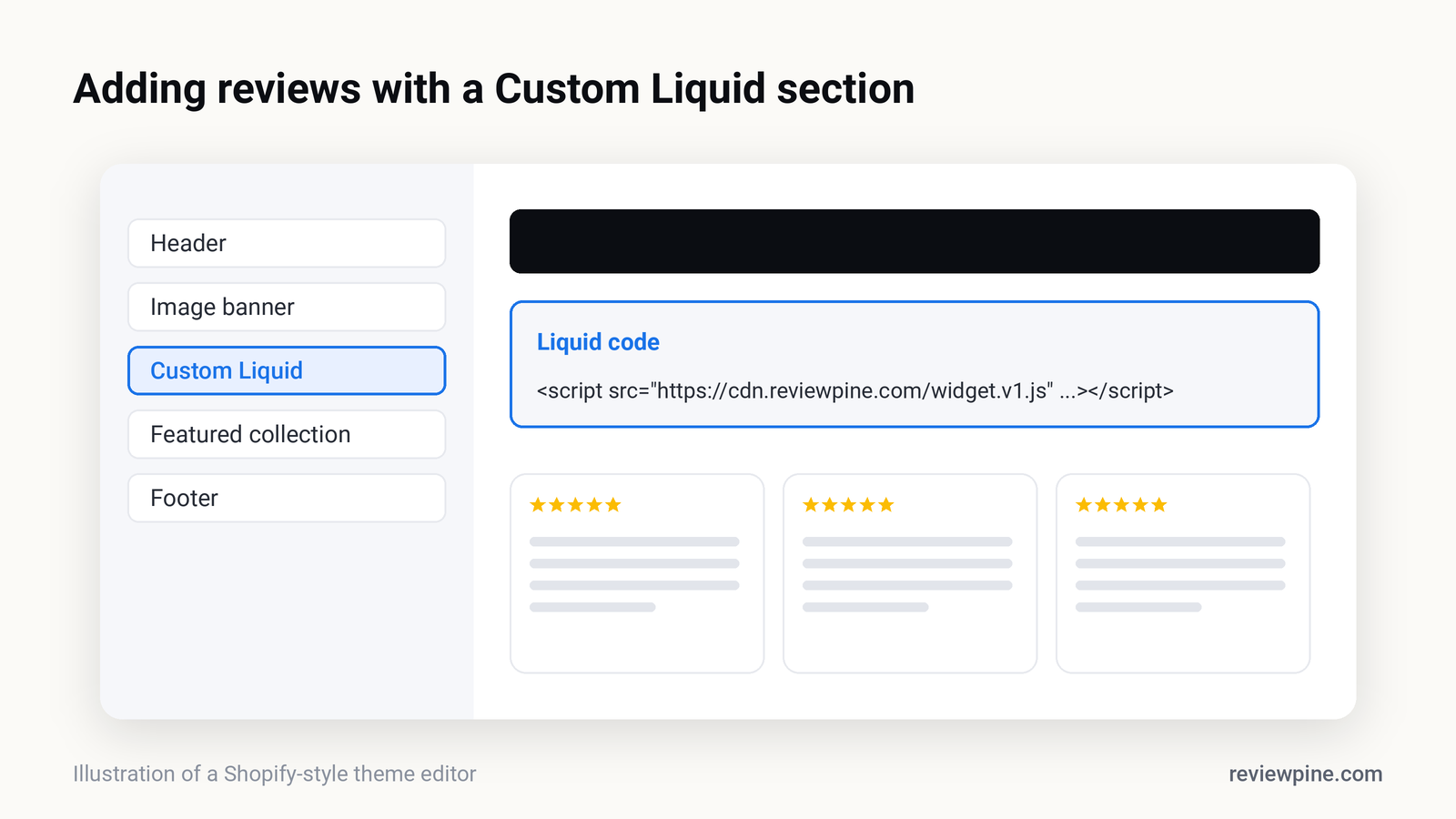
Tip: Right under the hero banner is usually the strongest homepage spot. It turns your headline's promise into evidence before visitors scroll.
How to add Google reviews to product pages#
- In the theme editor, switch the template dropdown to Products → Default product (or a specific product template).
- In the product information area, click Add block and choose Custom Liquid, or add a Custom Liquid section below the product.
- Paste the code and click Save.
A compact badge with your overall Google rating near the price works well, with a fuller carousel lower down the page. Because templates are shared, this shows on every product using that template, so choose reviews about your service and delivery, which apply to every product.
How to show Google reviews in the footer or on every page#
- In the theme editor, click the Footer section group.
- Add a Custom Liquid block or section.
- Paste the code and save.
A small rating badge in the footer keeps your reputation visible across collection pages, blog posts and policy pages without crowding them.
How to add reviews to the cart page#
Cart abandonment often happens at the moment of payment doubt. If your theme lets you add sections to the cart template, a short list of reviews about delivery and returns can reassure first-time buyers. Keep it compact so it doesn't push the checkout button down.
Which layout suits each Shopify placement?#
| Placement | Layout |
|---|---|
| Homepage under the hero | Carousel with rating header |
| Product page near price | Badge with rating and count |
| Product page lower down | Grid or carousel |
| Footer | Badge |
| Cart | Short list |
You can see each layout working with real reviews in the ReviewPine gallery.
Will a reviews widget slow down my Shopify store?#
Page speed matters a lot in e-commerce. A well-built widget loads asynchronously and only fetches reviews when the shopper scrolls near it, so it doesn't delay your hero image or product photos. Check your store's speed score in Shopify's Online Store dashboard or Google's PageSpeed Insights before and after adding any third-party code. ReviewPine's widget is lightweight, lazy-loading and cookie-free.
Do I need a Shopify app?#
No. A Custom Liquid section with an embed code needs no app installation, no app permissions on your store data and no extra app scripts loading on every page. Apps make sense for product reviews collected after purchase; for showing your Google reviews, embed code is simpler and lighter.
Can Google reviews give my product pages stars in search?#
Google reviews about your store are reviews of your business, and Google doesn't show star snippets for a business's reviews of itself on its own site. Product pages can be eligible for product review stars, but only with genuine product reviews and correct Product markup. See review schema and star ratings for the details.
Tips for different types of Shopify stores#
| Store type | What to emphasise |
|---|---|
| New store with few orders | Google reviews from your offline shop or past customers; your overall rating near the add-to-cart button |
| High-value products (furniture, electronics) | Reviews about delivery, installation and after-sales help, close to the price |
| Fashion and beauty | Reviews about fit, quality and returns, plus product reviews with photos |
| Food and gifting | Reviews about packaging, freshness and on-time delivery, especially before festivals |
| Local delivery or click-and-collect | Reviews mentioning your area and pickup experience |
What about Shopify's checkout?#
Shopify's checkout pages are locked down on most plans, so you can't usually add widgets there. Instead, reassure shoppers on the cart page and product pages, which is where most hesitation happens anyway, and use your order confirmation and shipping emails to ask for reviews after delivery.
Multiple languages and markets#
If you sell in several countries with Shopify Markets, keep your Google reviews widget on templates shared across markets, and choose a layout and text language that suits your main audience. Reviews appear in the language customers wrote them in, which is usually fine; shoppers understand that reviews are written by real people in their own words.
Get your Shopify store reviewed and seen#
Ask customers for Google reviews in your shipping confirmation or a follow-up email a few days after delivery. Our review request templates include e-commerce versions. Then show those reviews where shoppers hesitate.
ReviewPine shows your live Google reviews on Shopify with one Custom Liquid section: pick a layout, match your store's colours, paste the code. Reviews refresh automatically, and the "Write a review" button lets happy customers add theirs straight from your store.
Frequently asked questions
How do I add Google reviews to my Shopify store?
Do I need an app to show Google reviews on Shopify?
Can I show Google reviews on Shopify product pages?
What is the difference between product reviews and Google reviews on Shopify?
Will Google reviews slow down my Shopify store?
Turn your Google reviews into your best salesperson
Show real, always-fresh Google reviews on any page of your website, with a "Write a review" button that brings in new ones. Set up in about two minutes.
- Works on WordPress, Shopify, Wix and any site
- Updates itself every day
- No cookies, no slowdown
Anjanee Shukla
Founder, Ainygo Technologies
Anjanee Shukla is the founder of Ainygo Technologies and has been working in the technology industry for over 15 years. He has helped businesses worldwide by developing more than 1,000 websites, web applications, and digital solutions. His expertise spans WordPress, web development, website maintenance, hosting, automation, and business technology. Through this blog, he shares practical advice, technical knowledge, and real-world solutions gained from years of hands-on experience.