How to Add Google Reviews to WordPress (Block Editor, Elementor, Divi)
A step-by-step guide to showing Google reviews on WordPress: the block editor, page builders, every page at once, and the caching settings that quietly stop review widgets from appearing.

On this page
- Plugin or embed code: which is better on WordPress?
- Method 1: The block editor (Gutenberg)
- Method 2: Elementor
- Method 3: Divi, Beaver Builder, WPBakery and others
- Method 4: Show reviews on every page
- Why aren't my reviews showing on WordPress?
- Will a reviews widget slow down WordPress?
- Does it matter which WordPress theme I use?
- Can I filter which reviews appear?
- How to add reviews to WordPress landing pages for ads
- Multisite and agency setups
- Get started
Key takeaways
- In the block editor, add a Custom HTML block, paste the embed code and update the page.
- In Elementor use the HTML widget; in Divi the Code module; in Beaver Builder the HTML module.
- For sitewide reviews, add the code to the footer template part (block themes) or a footer widget area (classic themes).
- Most "reviews not showing" problems come from caching plugins delaying JavaScript; exclude the widget script.
- Embed code keeps WordPress lean: nothing to install or update, and it works on any platform.
To add Google reviews to WordPress, copy your review widget's embed code, edit the page, add a Custom HTML block where you want the reviews, paste the code and click Update. With page builders, use their HTML or code element instead: Elementor's HTML widget, Divi's Code module or Beaver Builder's HTML module. To show reviews on every page, add the same code to a footer widget area or your theme's footer template.
That covers most sites in about two minutes. Below are detailed steps for each editor, sitewide placement, and the caching settings that cause most "my reviews aren't showing" problems.
Plugin or embed code: which is better on WordPress?#
WordPress has many Google review plugins. They feel convenient, but they come with trade-offs worth knowing:
| Review plugin | Embed code (widget) | |
|---|---|---|
| Setup | Install, configure inside WordPress | Paste one line into a block |
| Effect on your site | Adds PHP and often scripts on every page | Loads only where you place it |
| Updates and security | Another plugin to keep updated | Nothing to update in WordPress |
| Moving off WordPress | Start again | Same code works anywhere |
| Data source | Often Google's API, limited to a few reviews | Depends on the provider |
Every plugin is extra code running in your WordPress install that needs updates, and abandoned plugins are a common security risk. An embed code keeps your WordPress lean: nothing to install, nothing to update, and if you ever move to Shopify or Webflow, the same line of code works there too. For the full comparison of methods, see how to add Google reviews to your website.
Method 1: The block editor (Gutenberg)#
- In your review widget's dashboard, click Copy code.
- In WordPress, open the page or post and click Edit.
- Click the + where the reviews should appear.
- Search for Custom HTML and add the block.
- Paste the code into the block.
- Click Preview to check it, then Update or Publish.
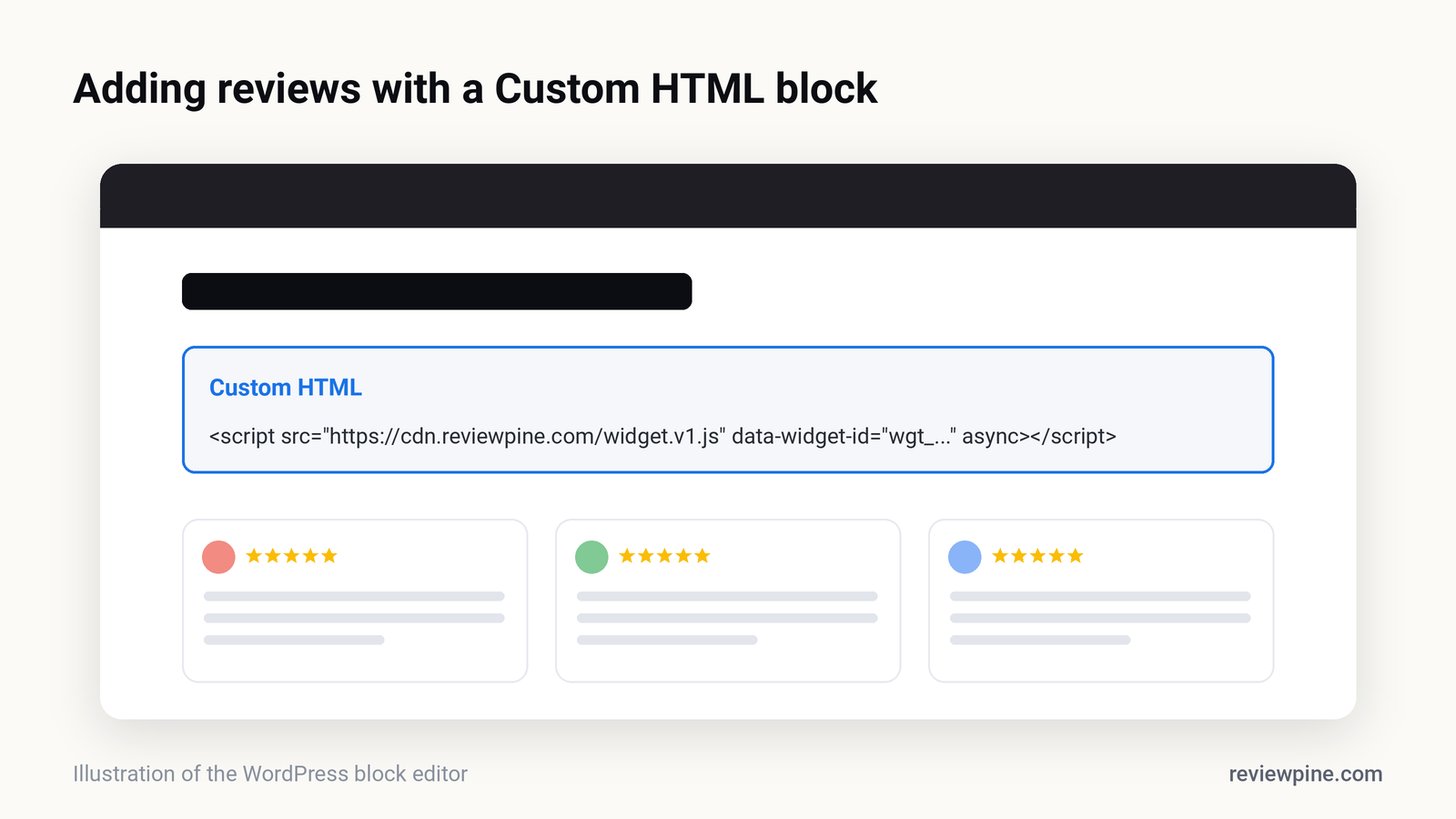
Note: The Custom HTML block shows code in the editor, not the live widget. Use Preview to see the reviews as visitors will.
Who can add Custom HTML?#
On a standard single WordPress site, Administrators and Editors can add Custom HTML that includes scripts. Authors and Contributors can't, for security reasons. If the block strips your code when saving, check your user role or ask an administrator to add it.
Method 2: Elementor#
- Edit the page with Elementor.
- Search the widget panel for HTML and drag it where the reviews should go.
- Paste the embed code into the HTML Code box.
- Click Update, then check the page.
Elementor shows a placeholder in the editor; the reviews appear on the live page and in preview.
Method 3: Divi, Beaver Builder, WPBakery and others#
| Builder | Element to use |
|---|---|
| Divi | Code module |
| Beaver Builder | HTML module |
| WPBakery | Raw HTML element |
| Bricks | Code element (enable code execution in Bricks settings) |
| Oxygen | Code Block |
| Classic Editor | Switch to the Text tab and paste |
The process is the same everywhere: drop in the builder's HTML or code element, paste the line, save.
Method 4: Show reviews on every page#
A small rating badge or a review strip in the footer can work sitewide.
Block themes (Site Editor): go to Appearance → Editor → Patterns → Template Parts → Footer, add a Custom HTML block, paste the code and save. It appears on every page that uses that footer.
Classic themes: go to Appearance → Widgets, add a Custom HTML widget to a footer or sidebar area, paste the code and save.
For most sites, a compact badge works best sitewide, with fuller widgets on the homepage, service pages and contact page. See where to put reviews on your website for a placement plan.
Why aren't my reviews showing on WordPress?#
Most problems come from optimisation plugins, not the widget.
| Symptom | Likely cause | Fix |
|---|---|---|
| Reviews appear only after scrolling or clicking | "Delay JavaScript" in WP Rocket, LiteSpeed Cache or similar | Exclude the widget script from delay |
| Nothing appears at all | Code stripped on save (user role) or blocked by a security plugin | Re-add as Administrator; check security logs |
| Old design still showing after changes | Page or CDN cache | Clear the cache in your caching plugin and CDN |
| Widget shows on desktop, not mobile | Separate mobile cache or the block hidden on mobile | Clear mobile cache; check block visibility settings |
| Layout looks squashed | Placed in a very narrow column | Move to a wider section or use a badge or list layout |
Tip: In WP Rocket, go to File Optimization → Delay JavaScript execution and add the widget's script name to the exclusions. Other caching plugins have a similar exclusion list.
Will a reviews widget slow down WordPress?#
It shouldn't, if it's built well. Look for a widget that loads asynchronously, doesn't block rendering, and only fetches reviews when the visitor scrolls near it. Check your page in Google's PageSpeed Insights before and after. ReviewPine's script is small, loads lazily and sets no cookies, so it won't add to your cookie consent requirements.
Does it matter which WordPress theme I use?#
Not much. Embed code works with any theme because it renders in its own container. If your theme forces very narrow content areas, choose a layout that suits the space: a list or badge for narrow columns, a carousel or grid for full-width sections.
Can I filter which reviews appear?#
That depends on your widget, not on WordPress. Useful options include a minimum star rating, hiding very short reviews, sorting by newest, and pinning favourite reviews to the front. With ReviewPine, you set these in the dashboard and the change appears on your WordPress pages instantly, with no need to edit the page again.
How to add reviews to WordPress landing pages for ads#
If you run Google or Meta ads to a WordPress landing page, reviews above the fold matter even more, because paid visitors are often colder than organic ones. A few tips:
- Put a carousel with your rating header directly under the headline, before the form, so proof appears in the first screen on mobile.
- Match the reviews to the ad. An ad about emergency plumbing should land on reviews about fast call-outs, using a widget filtered or pinned for that theme.
- Keep the page fast. Landing page speed affects both conversions and ad quality scores; use a lazy-loading widget and check PageSpeed Insights.
- Track conversions on the form or call button, so you can see whether adding reviews changed the landing page's performance. Our guide to reviews and conversion rates explains how to measure it.
Multisite and agency setups#
Agencies managing several client WordPress sites can use a separate widget for each client business, each with its own embed code. On WordPress Multisite, only Super Admins can add unfiltered HTML by default, so the person adding the code needs that role, or the site's administrator needs to add it on their behalf.
Get started#
- Create a free ReviewPine account and paste your Google Maps link.
- Pick a layout from the widget gallery and match your brand colours.
- Copy the code, paste it into a Custom HTML block, and update the page.
Your reviews refresh automatically, and the built-in "Write a review" button turns your WordPress site into a place that collects new reviews as well as showing them.
Frequently asked questions
How do I add Google reviews to WordPress without a plugin?
How do I add Google reviews to Elementor?
Why are my Google reviews not showing on WordPress?
How do I show Google reviews on every WordPress page?
Is a Google reviews plugin better than embed code for WordPress?
Turn your Google reviews into your best salesperson
Show real, always-fresh Google reviews on any page of your website, with a "Write a review" button that brings in new ones. Set up in about two minutes.
- Works on WordPress, Shopify, Wix and any site
- Updates itself every day
- No cookies, no slowdown
Anjanee Shukla
Founder, Ainygo Technologies
Anjanee Shukla is the founder of Ainygo Technologies and has been working in the technology industry for over 15 years. He has helped businesses worldwide by developing more than 1,000 websites, web applications, and digital solutions. His expertise spans WordPress, web development, website maintenance, hosting, automation, and business technology. Through this blog, he shares practical advice, technical knowledge, and real-world solutions gained from years of hands-on experience.